
Terminal UI
Maggus uses a full-screen terminal UI built with Bubble Tea and Lipgloss. Every interactive view runs inside a bordered box with a status bar at the bottom showing available keyboard shortcuts.
When Claude 2x mode is active, the logo and borders turn yellow and a countdown timer is displayed.
Main Menu
When you run maggus without any arguments in a terminal, the interactive main menu launches.
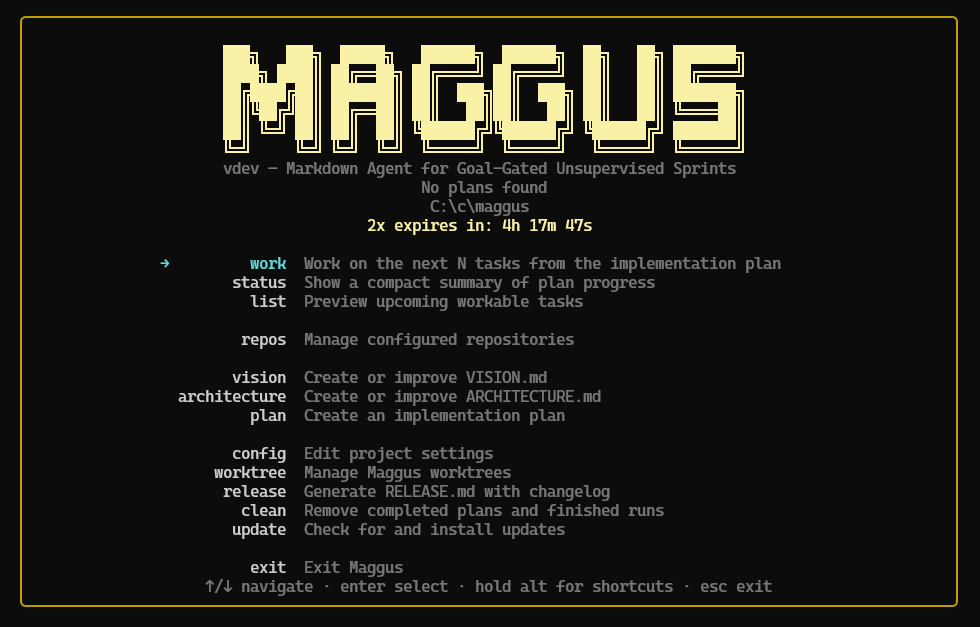
Layout
The menu screen shows:
- Logo and version at the top, centered
- Plan summary —
N plans · N tasks · N done · N blocked(or "No plans found") - Current directory displayed below the summary
- Menu items grouped by category
- Status bar at the bottom with navigation hints
When an update is available, a green banner appears below the summary.
Menu Items
Items are grouped into four categories:
Shortcut hints
Hold Alt to briefly reveal underlined shortcut characters on each menu item. The underlines auto-hide after 1.5 seconds.
Core Workflow
| Item | Shortcut | Description |
|---|---|---|
| work | alt+w | Work on the next N tasks from the implementation plan |
| status | alt+s | Show a compact summary of plan progress |
| list | alt+l | Preview upcoming workable tasks |
Repository Management
| Item | Shortcut | Description |
|---|---|---|
| repos | alt+r | Manage configured repositories |
AI-Assisted Creation
These items only appear when Claude Code is installed.
| Item | Shortcut | Description |
|---|---|---|
| vision | alt+v | Create or improve VISION.md |
| architecture | alt+a | Create or improve ARCHITECTURE.md |
| plan | alt+p | Create an implementation plan |
Project Management
| Item | Shortcut | Description |
|---|---|---|
| config | alt+c | Edit project settings interactively |
| worktree | alt+t | Manage Maggus worktrees |
| release | alt+z | Generate RELEASE.md with changelog |
| clean | alt+n | Remove completed plans and finished runs |
| update | alt+u | Check for and install updates |
| init | alt+i | Initialize a .maggus project (only shown when not yet initialized) |
Navigation
| Key | Action |
|---|---|
Up / Down | Move through menu items |
Enter | Select the highlighted item |
Home / End | Jump to first / last item |
Alt + shortcut | Jump directly to an item (e.g. Alt+w for work) |
q / Esc / Ctrl+C | Exit Maggus |
Sub-Menus
Some commands open a sub-menu where you configure options before running. Currently work and worktree have sub-menus.
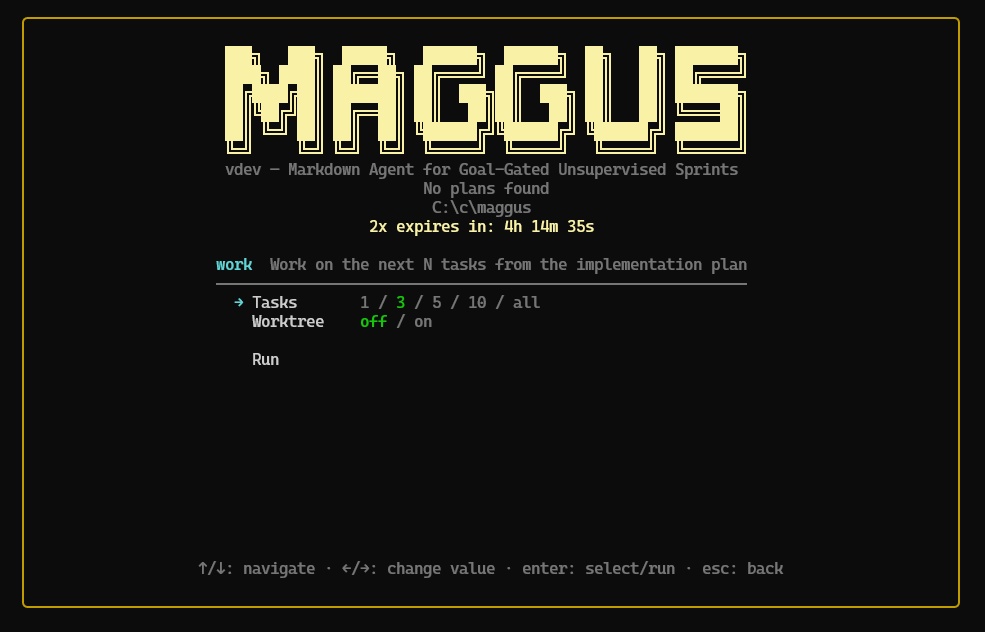
Work Sub-Menu
| Option | Values | Default |
|---|---|---|
| Tasks | 1, 3, 5, 10, all | 3 |
| Worktree | off, on | off |
Worktree Sub-Menu
| Option | Values | Default |
|---|---|---|
| Action | list, clean | list |
Sub-Menu Navigation
| Key | Action |
|---|---|
Up / Down or j / k | Move between options |
Left / Right or h / l | Cycle option values |
Enter | Cycle value (on option row) or confirm (on Run) |
Home / End | Jump to first / last row |
q / Esc | Back to main menu |
Ctrl+C | Quit |
Auto-Update
Maggus checks for updates on startup (non-blocking). The behavior depends on the auto_update setting in your global config (~/.maggus/config.yml):
| Mode | Behavior |
|---|---|
off | No update check |
notify | Shows a banner when an update is available |
auto | Downloads and applies updates automatically |
See Configuration for details on setting the update mode.
Work View
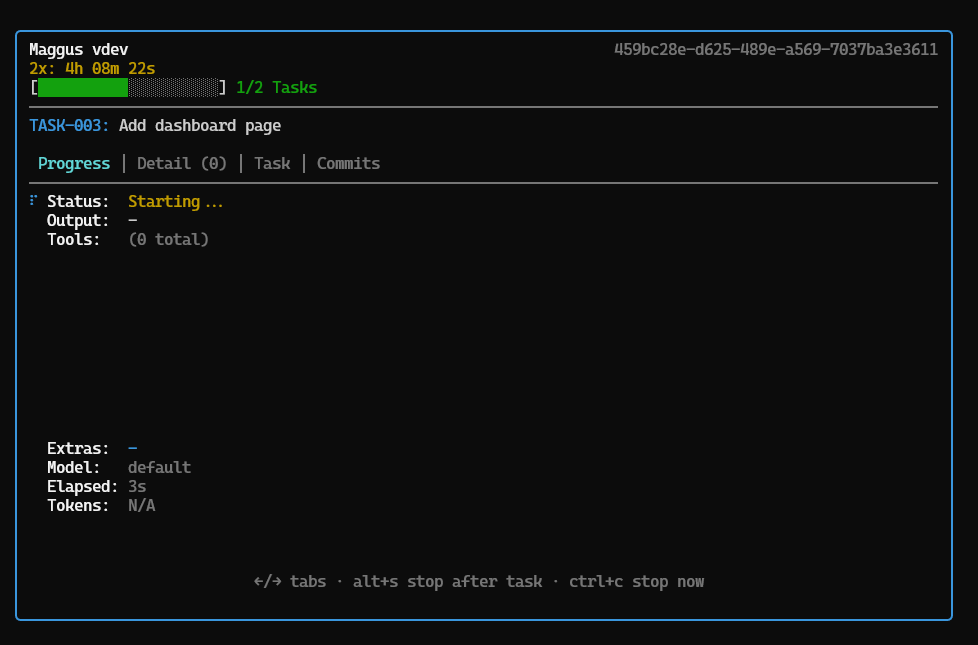
The work view displays while maggus work is running. A tab bar at the top lets you switch between four views.
Progress Tab
Shows the current task status, output summary, tool count, model, elapsed time, and token usage.
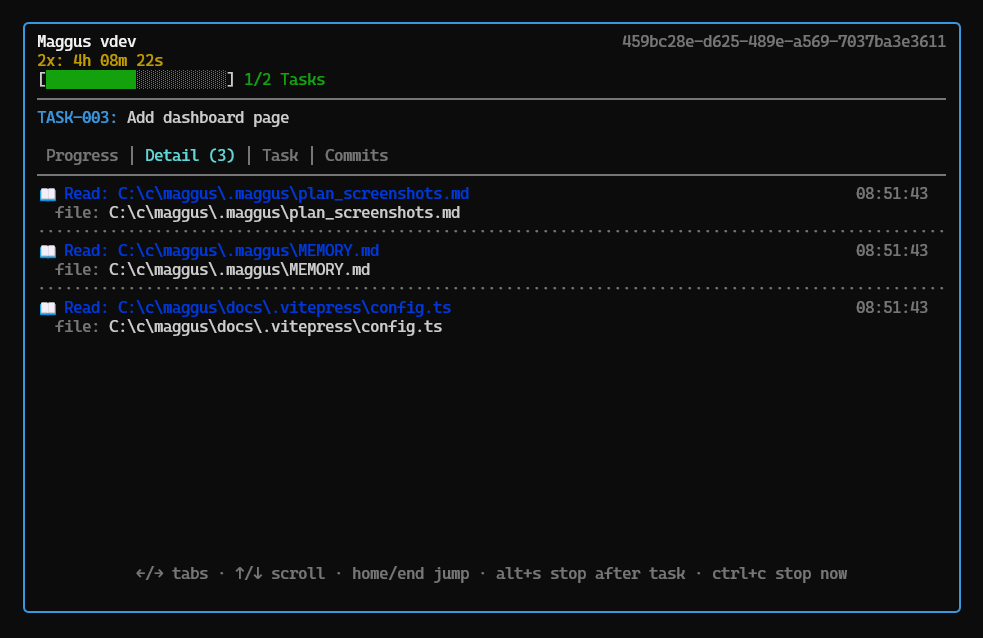
Detail Tab
A scrollable log of every tool invocation with timestamps and file paths.
Task Tab
The current task's description and acceptance criteria with completion status.
Commits Tab
List of commits made during the current run.
Keyboard Shortcuts
| Key | Action |
|---|---|
Left / Right or 1-4 | Switch tabs |
Up / Down | Scroll detail log (on Detail tab) |
Home / End | Jump to top/bottom of detail log |
Alt+S | Stop after current task (with confirmation) |
Alt+S (when stopping) | Cancel the stop and resume |
Ctrl+C | Interrupt immediately |
Stop After Task
Press Alt+S during execution to request a graceful stop after the current task completes. A confirmation prompt appears: Stop after current task? (y/n). When active, the box border turns yellow as a visual indicator. Press Alt+S again to revert and continue.
Summary Screen
After all tasks complete (or the run is stopped/interrupted), a summary screen shows run details, token usage per task, commits, and remaining tasks. The title reflects the stop reason:
| Title | When |
|---|---|
| Work Complete | All requested tasks finished successfully |
| Stopped by User | User pressed Alt+S to stop after a task |
| Work Interrupted | User pressed Ctrl+C during execution |
| Work Failed | A task or commit failed (shows error detail) |
| No Tasks Available | No workable tasks found |
From the summary screen you can choose Exit or Run again (with a custom task count).
Status View
The status view shows plan progress with tabbed plan sections, progress bars, and task lists.
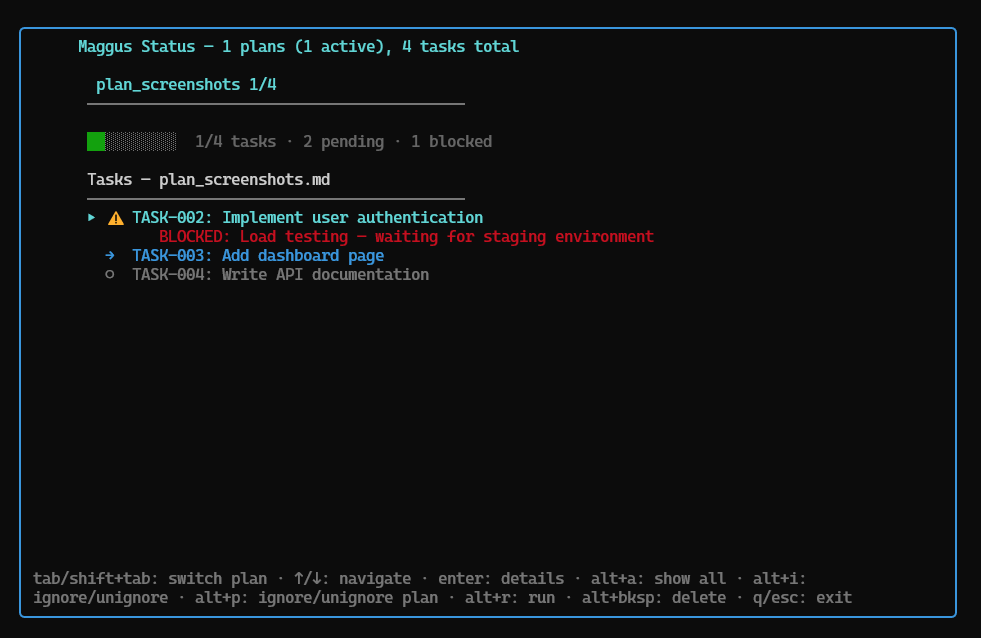
Keyboard Shortcuts
| Key | Action |
|---|---|
Tab / Shift+Tab | Switch between plans |
Up / Down | Navigate tasks |
Enter | Open task detail view |
Alt+A | Toggle showing all tasks vs. only incomplete |
Alt+I | Ignore/unignore the selected task |
Alt+P | Ignore/unignore the selected plan |
Alt+R | Run the selected task |
Alt+Backspace | Delete the selected task (with confirmation) |
q / Esc | Exit |
Task Detail
Press Enter on any task to open a detail view showing its plan file, status, criteria summary, description, and acceptance criteria.
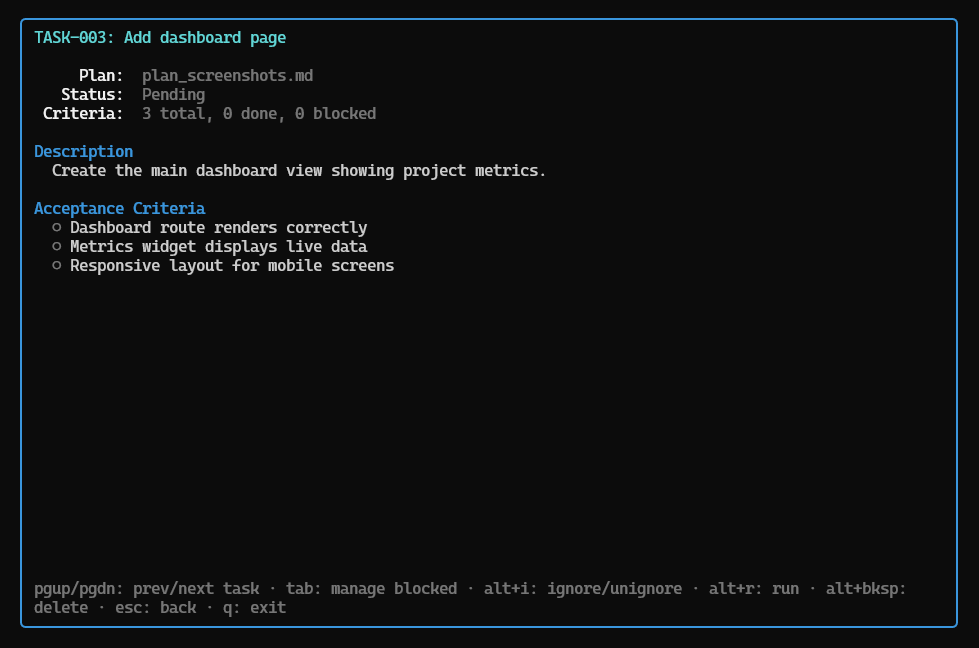
| Key | Action |
|---|---|
PgUp / PgDn | Previous/next task |
Tab | Enter criteria mode (for blocked tasks) |
Alt+I | Ignore/unignore the task |
Alt+R | Run the task |
Alt+Backspace | Delete the task |
Esc | Back to task list |
q | Exit |
Managing Blocked Tasks
When viewing a task with blocked criteria, press Tab to enter criteria mode. Navigate between blocked criteria with Up/Down and press Enter to open the action picker.
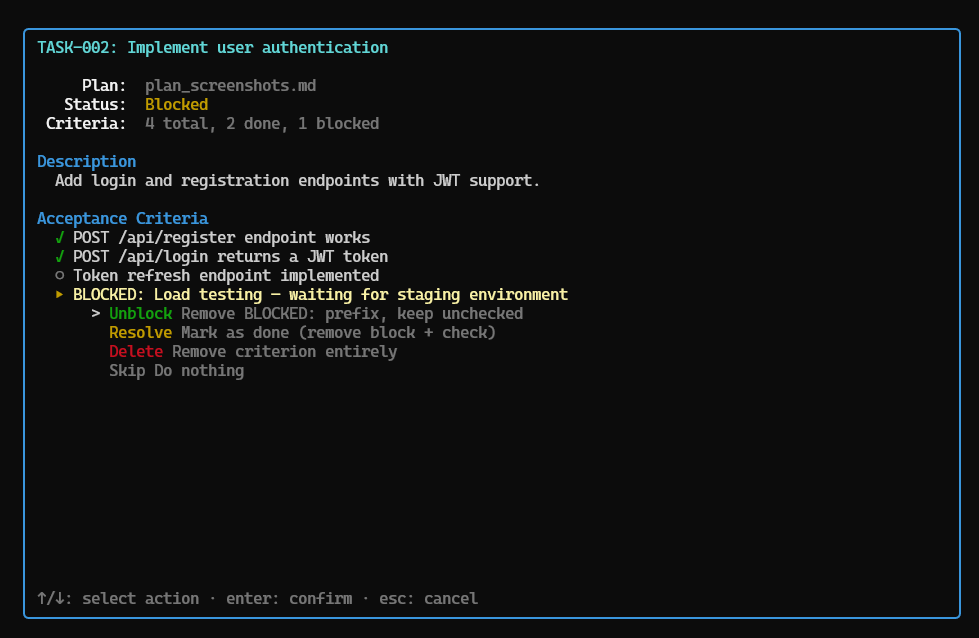
The action picker offers four options:
| Action | Description |
|---|---|
| Unblock | Removes the BLOCKED: prefix, turning it back into a normal unchecked criterion |
| Resolve | Marks the criterion as done (removes the block and checks it) |
| Delete | Removes the criterion entirely from the plan file |
| Skip | Leaves the criterion unchanged |
Changes are applied immediately to the plan file. Press Esc to go back.
List View
The list view shows all incomplete tasks with their source plan file.
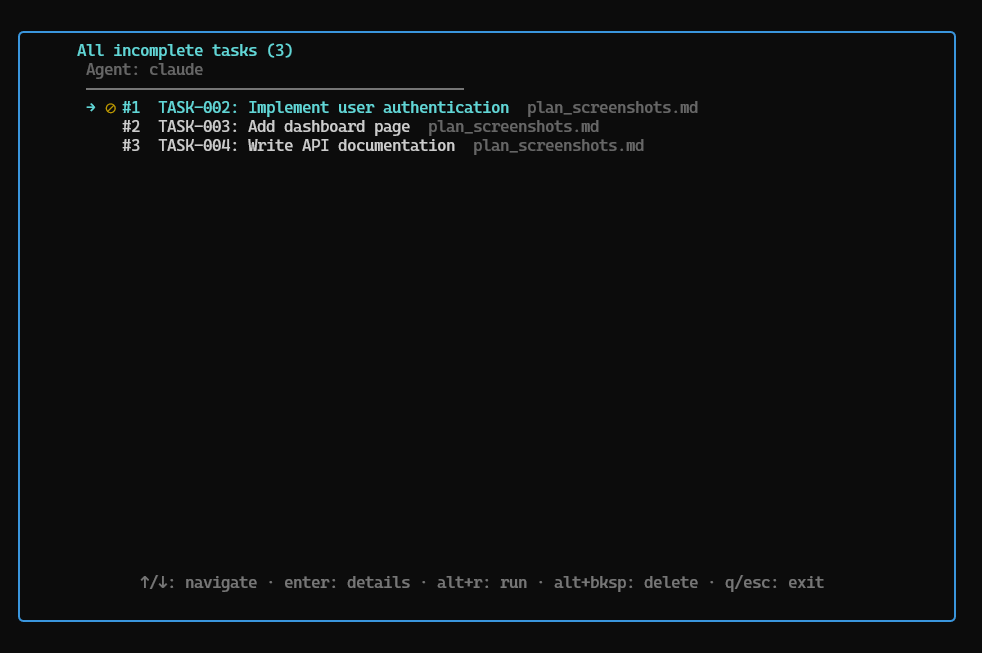
Keyboard Shortcuts
| Key | Action |
|---|---|
Up / Down | Navigate tasks |
Enter | Open task detail view |
Alt+R | Run the selected task |
Alt+Backspace | Delete the selected task |
q / Esc | Exit |
Blocked tasks are shown with a ⊘ icon. The task detail view works the same as in the Status View, including criteria mode for managing blocked items.